Showing posts with label CRM business rules. Show all posts

Tuesday, November 10, 2015

CRM 2013 Tips: Set field read only/lock after save the record using CRM Business Rules

There are various ways to set field read only after saving record in CRM, most popular way is use JavaScript. However we can use Business Rule to set field read only based on the behavior of the other field or value of the same field. But there were no direct way to set field read only after saving the record. However we can utilize some behaviors of the Business Rule to set field read only after saving.

We can use “set field read only based on another field value” feature to set target field to read only. To do that we need a field which set value automatically after save the record and it should be read only by default. In CRM we have 4 fields which have those properties. Those fields are “Created By”, “Created On”, “Modified By” and “Modified On”. To set field read only after saving we need to add one of these fields to your target form (because Business Rules are working on the fields which available in the form). Then we can create business rule to set read only relevant field based on the value of previously mentioned fields.


For example:
I need to set read only field called “Identification Number” in the contact form after saving contact details.

Steps:
Add one of following fields in to the contact creation form.
  •     Crated On
  •     Created By
  •     Modified On
  •     Modified By

We choose “Created By” field as helping field to create business rule


Then create business rule to set “Identification Number” field to read only after set value to the “Crated By” field. We set business rule scope to form which we need to create contacts.


After activate business rule just create a contact record then you can see the Identification Number get locked because Created By field contains the data



Tuesday, April 28, 2015

CRM 2013 Tips – Change field required level using Business Rules


Business rules are CRM form based functions which introduced with CRM 2013. Using business rules can perform CRM form based functions like change visibility of fields, change required level of fields etc. without writing bunch of JavaScript or JQuery.


As mentioned previously using CRM business rules can change required level of the field based on the value of some other field or other conditions. To do that need to create two business rules.   
  1. One is set required level of the field. 
  2. Other one is reset required level of the same field when field value not equals to the target value.


Before creating business rules need to identify what are the forms we need to effect.


Scenario: 
If business partner has online payment then account information page should set required web site field.

Solution Steps:

  1. Add new field (two option set field) to capture value of online payment ability.
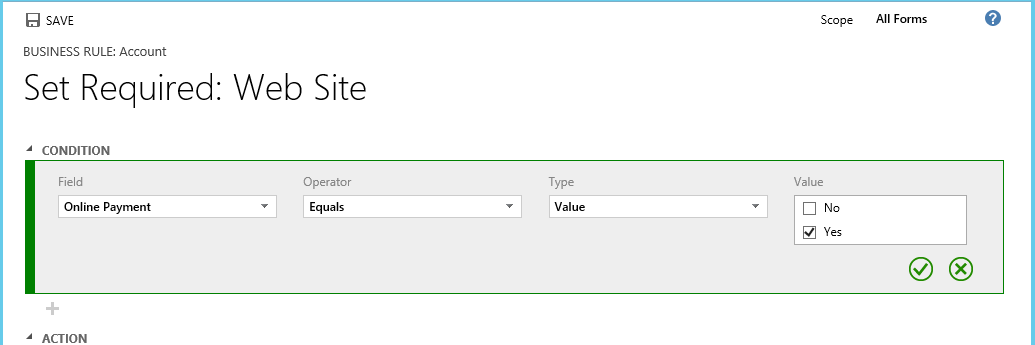
  2. Create one business rule to set “Web Site” field required when user set value “yes” for “Online Payment” field
  3. Create another business rule to set “Web Site” field not required after user set value “no” for “Online Payment” field 


Scope of business rule

  • We can define business rule to affect all forms or specific form

Business Rule Scope


Create business rule to set required level

  • Create business rule and set condition need to trigger
 
Set Condition to trigger business rule


  • Set action need to perform
 
Set Required action


  •  After saving business rule need to activate


Create business rule to remove required level


  • Create business rule to set not required for No online payment condition

Not required condition


  • Set action need to perform

Reset required level to not required


Results

CRM indicates Web Site is required after user select Online Payment to Yes

After Trigger Set Required Business Rule


CRM indicates Web Site is not required after user select Online Payment to No

After Trigger Set Not Required Business Rule