Monday, March 17, 2014

C# - Access Moneris Payment Gateway in Local Environment – Part 1

Testing payment related functionalities are more critical developing systems which enables payment through the payment gateway. In Canada, one of the famous online payment gateway is "Moneris". Following article shows how to configure Moneris payment gateway to test payment functionalities in local development environment.

Following URL navigates the Moneris website which can use to configure store for testing purposes.

https://esqa.moneris.com/mpg/

Following screen shows login screen for their Testing site

Moneris Login Page
Then navigates to Admin -> “hosted config” section (see following screen)

Moneris Hosted Config Page

Then generate new configuration. When entering Approved and Decline URLs Moneris does not allowed you to add localhost or any IP address. Due to that reason we need to put valid address. However to overcome that issue we can add host entry to local development machine (add new host entry in host file located in “C:\Windows\System32\drivers\etc”) and use that host address as an address of web site. For the demonstration use address - http://localdev.payment/.


User can configured three different pages as an approved return page, Cancel return page and decline page. Based on the requirement it can configure response as a POST or GET or POST with XML. If you enable the "Use enhance Cancel" you can filter-out the cancel response and decline response separately without using two different pages for cancel and decline.  There are several key fields we need to extract from the Moneris response. Following list shows some of required fields and values. For more details please visit Moneris (http://www.moneris.com/)


Configuration Fields

Create request for payment gateway


To create payment request need to send set of required fields to the payment gateway. Following code snippet shows how to create payment request for Moneris payment gateway. Following knowledge base provide relevant request fields and response fields

http://docs.abvma.ca/documents/eSELECTplusHPPIG/eSELECTplusHPPIG.pdf

  protected void Page_Load(object sender, EventArgs e)

        {

            ClientScript.RegisterHiddenField("ps_store_id", "MB5YEtore3");

            ClientScript.RegisterHiddenField("hpp_key", "hpL9K5APKH49");

            ClientScript.RegisterHiddenField("order_id", "ord000001");

            ClientScript.RegisterHiddenField("charge_total", "100.00");


            btnSubmitPayment.PostBackUrl = "https://esqa.moneris.com/HPPDP/index.php";

        }


Following code snippet shows how get response from Moneris and extract.

    protected void Page_Load(object sender, EventArgs e)

        {

            lblResponseOrderIdValue.Text = Request.Form["response_order_id"];

            lblReseponseCodeValue.Text = Request.Form["response_code"];

            lblDateStampValue.Text = Request.Form["date_stamp"];

            lblTimeStampValue.Text = Request.Form["time_stamp"];

            lblBankApprovalCodeValue.Text = Request.Form["bank_approval_code"];

            lblResultValue.Text = Request.Form["result"];

            lblTotalAmountValue.Text = Request.Form["charge_total"];

        }


Following screen captures shows payment request and sample payment response


Payment Request

Moneris Payment Gateway - Test Details

Cancel Payment Response

Decline Payment Response


Tuesday, February 25, 2014

TFS Tips: Exporting Test Cases from Microsoft TFS without using Test Manager

We need to export test cases from TFS for various purposes (mainly document purposes). Microsoft visual studio test client 2012 does not support to export test case with details in user friendly manner. We can use Export functionality of web client to export test cases with steps and related work items. Following figures illustrates how export test cases using web client.

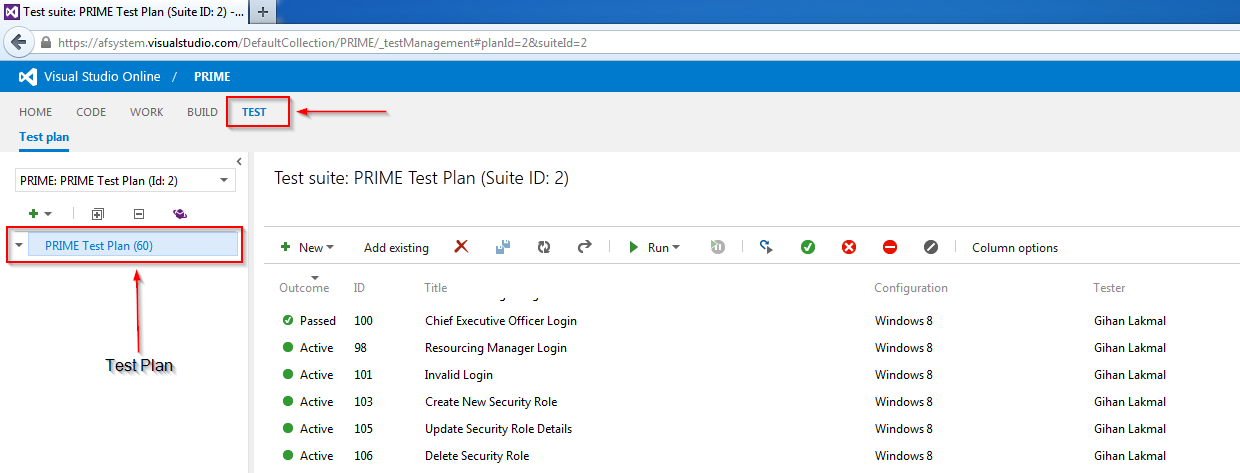
Web client only allow to export test cases which include in the test plan. First of all need to create proper test plan before export test cases. Following Screenshot illustrates the test plan and test cases which assigned to test plan.

Test Plan


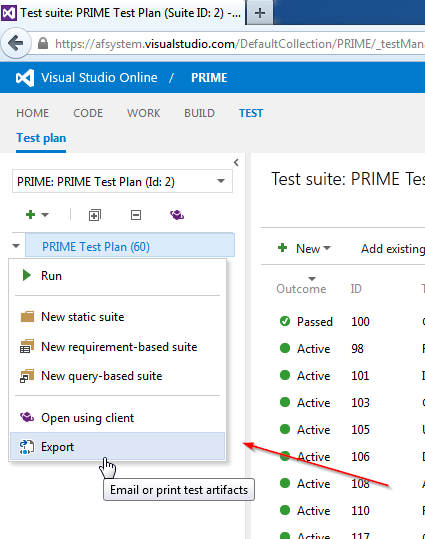
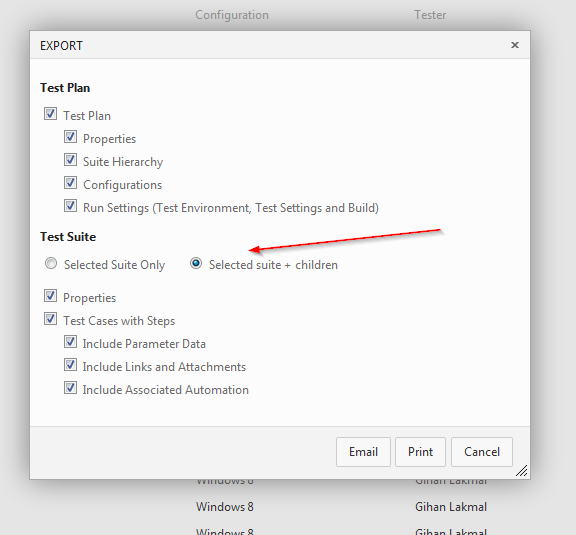
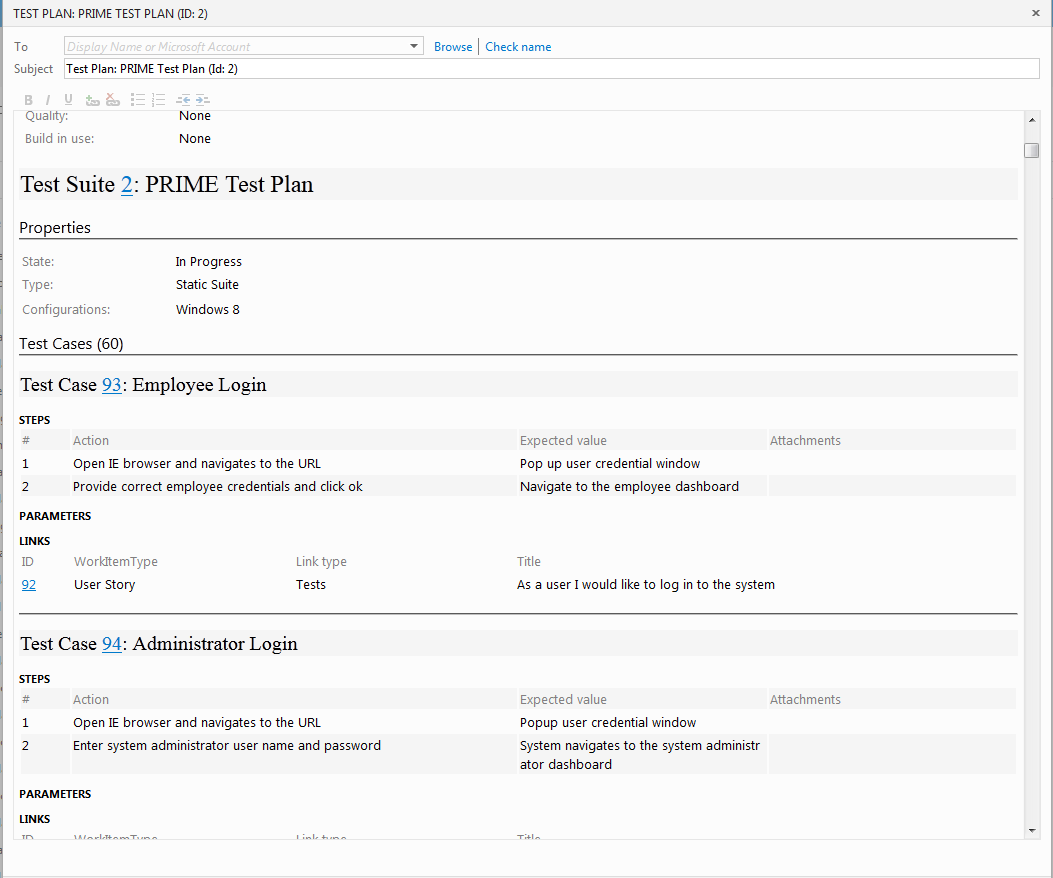
Then right click on test plan and select Export option from menu. It will allowed to select details which need to include in to the list. Online TFS facilitates to print or mail the test case details.

Export Menu

Test Case Export Settings

Exported Test Case List

Friday, February 21, 2014

Microsoft Dynamic 2011 on Internet Explorer 11

Microsoft Dynamic CRM 2011 does not support Internet Explorer 11 (IE11). If user try to navigate to CRM 2011 using IE 2011 then user will automatically redirects to the Dynamic CRM 2011 mobile site.

CRM 2011 Mobile Site

To avoid that issue can use compatibility settings of Internet Explorer 11. Following screen shows how set compatibility settings for Dynamic CRM 2011 site.

IE 11 compatibility Settings 
Add URL to compatibility view
CRM 2011 in IE 11 in compatibility mode

Tuesday, August 20, 2013

Consume Third Party Web Service Using Auto Generated Early Bound Proxy Object - C# - Part 1

Modern software solutions provides bunch of services to their users. Also most of current software solutions are not a stand-alone systems. They have lots of integration points with other systems to interact with each other. WCF web services are the most widely used service providing interface to software systems to interact with each other. There are several ways to consume third party WCF web service. Following two methods are the most commonly used pathways to consume third party web service.
  1. Use generated early bound service proxy classes
  2. Use service reference
In this post we discuss how to generate early bound proxy classes and use these proxy classes to consume third party web service.

Creating WCF web service

We use very similar WCF web service which used to consume C# web service using Android application ("C# Web Services and Android").
WCF web service provides functionality to retrieve person details based on the person Id. Use same person business object class to create person object which used in "C# Web Services and Android". Create "IPersonOperations" interface to define person operations and create "PersonOperations" concrete class to implements the services already defined in " IPersonOperations " interface class.

    interface IPersonOperations
    {
        /// 
        /// Creates the person list.
        /// 
        /// list of person
        List CreatePersonList();

        /// 
        /// Gets the person by unique identifier.
        /// 
        /// The user unique identifier.
        /// person
        Person GetPersonById(string userId);
    }


    public class PersonOperations:IPersonOperations
    {
        /// 
        /// Creates the person list.
        /// 
        /// list of person
        public List CreatePersonList()
        {
            List personList = new List();

            Person person1 = new Person();

            person1.FirstName = "Iron";
            person1.LastName = "Man";
            person1.Id = "IM01";

            Person person2 = new Person();

            person2.FirstName = "Avatar";
            person2.LastName = "Aang";
            person2.Id = "AA02";

            Person person3 = new Person();

            person3.FirstName = "Avatar";
            person3.LastName = "Korra";
            person3.Id = "AA03";

            personList.Add(person1);
            personList.Add(person2);
            personList.Add(person3);

            return personList;
        }

        /// 
        /// Gets the person by unique identifier.
        /// 
        /// The user unique identifier.
        /// person
        public Person GetPersonById(string userId)
        {
            List personList = this.CreatePersonList();

            if (string.IsNullOrEmpty(userId) || personList == null || personList.Count == 0)
            {
                return null;
            }

            Person result = personList.Where(x => x.Id.Equals(userId, StringComparison.OrdinalIgnoreCase)).FirstOrDefault();

            if (result == null)
            {
                return null;
            }

            return result;
        }
    }


Creating WCF operation contract and service contract

To access the WCF web service we need to create service contract and operation contract. Service contract create service interface to outside of the web service. Operation contract defines the operations which can perform under the relevant service contract. Namespace of the service contract is very important. Accessing web service and operations are totally depends on the service contract namespace. If you didn't provide namespace for service contract then it use default namespace " http://tempuri.org/". In this scenario we use namespace called " http://DemoWebService.com/ ". " IDemoService " is the service which provided by WCF web service and " GetPersonById " is the operation which provided under previously mentioned service.


    [ServiceContract(Namespace="http://DemoWebService.com/")]
    public interface IDemoService
    {
        /// 
        /// Gets the person by unique identifier.
        /// 
        /// The user unique identifier.
        /// person
        [OperationContract]
        Person GetPersonById(string userId);
    }


    public class DemoService : IDemoService
    {
        /// 
        /// Gets the person by unique identifier.
        /// 
        /// The user unique identifier.
        /// 
        /// person
        /// 
        public Person GetPersonById(string userId)
        {
            if (string.IsNullOrEmpty(userId))
            {
                return null;
            }
            else
            {
                PersonOperations result = new PersonOperations();

                return result.GetPersonById(userId);
            }
        }
    }


Important: before add the namespace for the WCF service please add " System.ServiceModel " reference. Otherwise it will give compile time errors.

Configure WCF web service

This is the one of the important step of the hosting WCF service. Following web config shows the important configurations we need to set before host WCF web service.


I add the behavior called " WcfService.DemoService " under service behaviors to register Demo Service behavior in http context. In this example I only used basic http bindings not use secure https bindings. Due to that reason need to set http binding to true. Set basichttpBindings with none security mode.
To avoid following error set " multipleSiteBindingsEnabled " to false. " When 'system.serviceModel/serviceHostingEnvironment/multipleSiteBindingsEnabled' is set to true in configuration, the endpoints are required to specify a relative address. If you are specifying a relative listen URI on the endpoint, then the address can be absolute. To fix this problem, specify a relative uri for endpoint 'http://localhost:8080/DemoService.svc'. " Then finally add service end point like following.


Friday, March 1, 2013

C# Web Services and Android – Part 2

Under part 2 we mainly consider about android based mobile application which used to communicate the web service we already design in Part 1(Click Here).

Android application use SOAP object to request data from web service and get response from the web service. We use third party library called “ksoap2-android” to create SOAP request and communicate with the web service. That library can freely download from following link (That library also included in bin folder of the Android mobile application project).

Download “ksoap2-android-full-2.1.2

To create SOAP object it need web service wsdl URL and operation name it needs to invoke. In the part 1 we specify how find out values for those variables. For the given scenario the wsdl target namespace is “http://DemoWebService.com/” and operation is “GetPersonById”. After that it needs to add parameter values needs to invoke web service operation. Name of the property is very important its need to same as the parameter name which define in the web service otherwise it doesn’t work.  Then it need to create envelop to add the SOAP object.  After set the envelop type (dotNet) its ready to transport the envelope to the web service and retrieve the response from web service.  Before send the envelop it need to mentioned the destination. Destination contains the URL of the web service we need to invoke. In our scenario the URL will be “http://localhost/DemoService.asmx” but localhost not recognize by the android emulator.  Instead of localhost it needs to define IP to recognize the localhost. Android emulator recognized “10.0.2.2” as a localhost (this IP valid for any PC). Finally the destination URL will be “http://10.0.2.2/DemoService.asmx”. After setting destination it’s time to invoke web method. To invoke web method it needs SOAP action. The value of SOAP action can easily find out from web service description (see part 1). In this scenario the SOAP action is “http://DemoWebService.com/GetPersonById”. After invoke web method it returns serializable Person object as response. We can use name of the each property of Person (as named in web service) to extract values from response object. Following code snippet illustrates how to implement each and every process which discuss before (e.g. how to create SOAP request, envelop, made request and retrieve results).


 private void GetFullNameById(){
  
  userId = (EditText) findViewById(R.id.txt_user_id);  
  resultText = (TextView)findViewById(R.id.lbl_result);
  fullNameText = (TextView)findViewById(R.id.lbl_full_name);
  
  id = userId.getText().toString();
  Constants projectConstants = new Constants();
  
  if(!(id == null || id.length() == 0)){
   
   String firstName = "";
   String lastName = "";
   String fullName = "";
   
   SoapObject request = new SoapObject(projectConstants.WSDL_TARGET_NAMESPACE, projectConstants.OPERATION_NAME);
   
   request.addProperty("userId", id);
   
   SoapSerializationEnvelope envelope = new SoapSerializationEnvelope(SoapEnvelope.VER11);
   
   envelope.dotNet = true;     
   envelope.setOutputSoapObject(request);     
   HttpTransportSE httpTransport = new HttpTransportSE(projectConstants.URL);
   
   try     
   {     
    httpTransport.call(projectConstants.SOAP_ACTION, envelope);     
    SoapObject response = (SoapObject) envelope.getResponse();
    
    if(response == null){
     resultText.setText("User Not Found");     
         
     resultText.setVisibility(View.VISIBLE);
     fullNameText.setVisibility(View.GONE);
     return;
    }
    
    firstName = response.getProperty(projectConstants.FirstName).toString();
    lastName = response.getProperty(projectConstants.LastName).toString();
    fullName = firstName + " " + lastName;
    
    if(fullName != null && fullName.length() > 0){
     resultText.setText(fullName);
     
     resultText.setVisibility(View.VISIBLE);
     fullNameText.setVisibility(View.VISIBLE);
     
    }else{
     
     resultText.setText("User Not Found");
     
     resultText.setVisibility(View.VISIBLE);
     fullNameText.setVisibility(View.VISIBLE);    
    }
   }     
   catch (Exception exception)     
   { 
    Log.i("Exception", exception.getMessage());
    
    resultText.setText("Error Occurs");     
    
    resultText.setVisibility(View.VISIBLE);
    fullNameText.setVisibility(View.GONE);
   }   
   
  }
 }


Following constant class defines all constant values need to invoke web service.


public class Constants {
 
 /**
  * Constants for return person object fields
  */
 protected final String FirstName = "FirstName";
 protected final String LastName = "LastName";
 protected final String Id = "Id";
 
 /**
  * SOAP request informations 
  */
 protected final String WSDL_TARGET_NAMESPACE = "http://DemoWebService.com/";
 
 protected final String OPERATION_NAME = "GetPersonById";
 protected final String URL = "http://10.0.2.2/DemoService.asmx";
 protected final String SOAP_ACTION = "http://DemoWebService.com/GetPersonById";
 
}


Important: before invoke web service its need to allow Android emulator to access the local network. Following code portion illustrate how to give permission to access the network. Following code snippet extracted from “AndroidManifest .xml”.


Download Complete Web Service Project
Download Complete Android Mobile Project (Target API Level Android 2.3.3, eclipse version - Helios) – Before run the mobile application please set build path of “ksoap2-android-full-2.1.2” library build path to lib folder